> ## Documentation Index
> Fetch the complete documentation index at: https://help.dreamcast.in/llms.txt
> Use this file to discover all available pages before exploring further.
# Profile Management
The Profile Management section is designed for hosts to manage their profiles. Here, they can:
* Add or update their name
* Provide their company, social media URL, etc
* Upload or change their profile photo
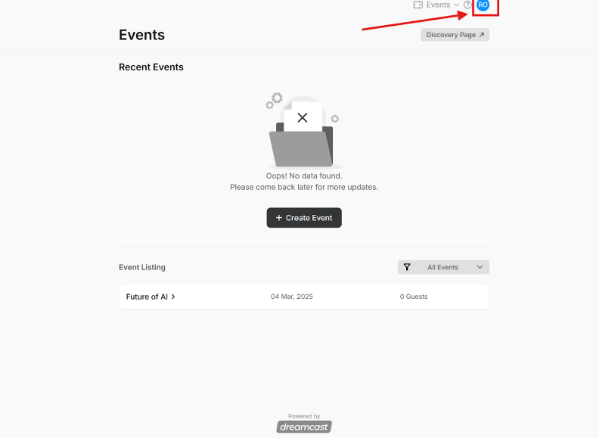 After signing in with your email or WhatsApp number, you can create and manage your profile.
To edit your profile, click the "**Profile**" icon in the upper right corner, and then click on the “**Settings**” option.
## 1. Your Profile Section
After signing in with your email or WhatsApp number, you can create and manage your profile.
To edit your profile, click the "**Profile**" icon in the upper right corner, and then click on the “**Settings**” option.
## 1. Your Profile Section
-1.png?fit=max&auto=format&n=f3gToxD9gK-VL7vV&q=85&s=3f0caf56e5df513a468733476aab3636) In the Your Profile section, you can customize how you are displayed as a host. Follow the steps below to update your profile details:
**Host Display Name & URL** – Choose how your name appears when acting as a host and add social links.
* **Host Display Name** – Enter the name you want to display.
In the Your Profile section, you can customize how you are displayed as a host. Follow the steps below to update your profile details:
**Host Display Name & URL** – Choose how your name appears when acting as a host and add social links.
* **Host Display Name** – Enter the name you want to display.
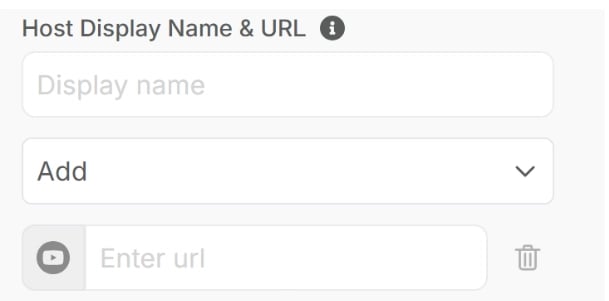
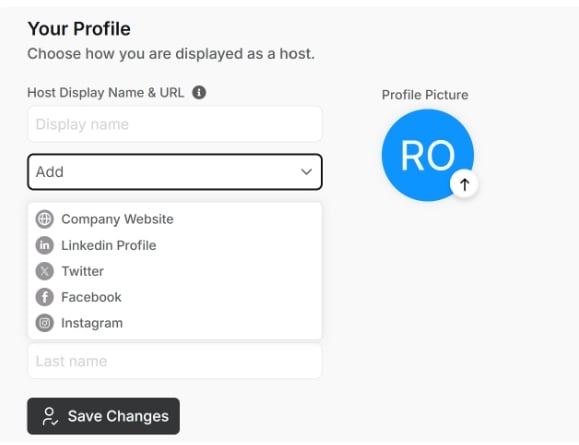 **URL** – Here you can add multiple social accounts simply by adding a URL such as Company Website, LinkedIn Profile, Twitter, Facebook, Instagram, and YouTube.
 **First Name** – Enter your first name.
**Last Name –** Enter your last name.
**Profile Image** – Upload or update your profile picture.
**Save Changes** – Click the Save Changes button to apply your updates.
These settings allow you to personalize your profile for better visibility and interaction.
## 2. Email & Phone Section
**First Name** – Enter your first name.
**Last Name –** Enter your last name.
**Profile Image** – Upload or update your profile picture.
**Save Changes** – Click the Save Changes button to apply your updates.
These settings allow you to personalize your profile for better visibility and interaction.
## 2. Email & Phone Section
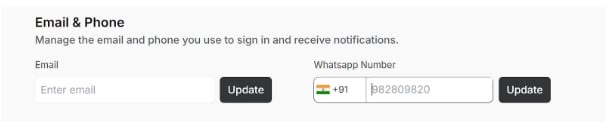 In the Email & Phone section, you can manage the email and phone number used for signing in and receiving notifications. Follow these steps to update your details:
**Email** – Enter or update the email address associated with your account. This email will be used for login and important notifications.
**WhatsApp Number** – Add or update your WhatsApp number to receive notifications and messages related to your account. Additionally, you can also use the WhatsApp number to log in.
Make sure to keep your contact details updated to ensure smooth access and communication.
## 3. Password Section
In the Email & Phone section, you can manage the email and phone number used for signing in and receiving notifications. Follow these steps to update your details:
**Email** – Enter or update the email address associated with your account. This email will be used for login and important notifications.
**WhatsApp Number** – Add or update your WhatsApp number to receive notifications and messages related to your account. Additionally, you can also use the WhatsApp number to log in.
Make sure to keep your contact details updated to ensure smooth access and communication.
## 3. Password Section
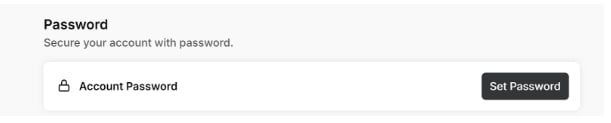 In the Password section, you can secure your account by setting or updating your password.
Follow these steps:
* Set Your Password – Create a strong password to protect your account.
* Confirm Password – Re-enter the password to ensure accuracy.
* Save Changes – Click the Save Changes button to update your password.
For security, use a combination of letters, numbers, and special characters.
**Update the Password**
In the Password section, you can secure your account by setting or updating your password.
Follow these steps:
* Set Your Password – Create a strong password to protect your account.
* Confirm Password – Re-enter the password to ensure accuracy.
* Save Changes – Click the Save Changes button to update your password.
For security, use a combination of letters, numbers, and special characters.
**Update the Password**
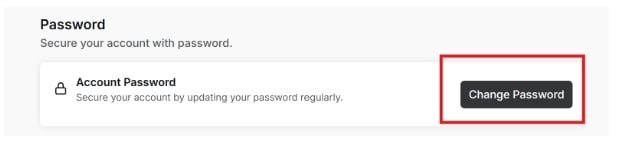 You can update your password. For this, you need to click on “**Change Password**“ in settings.
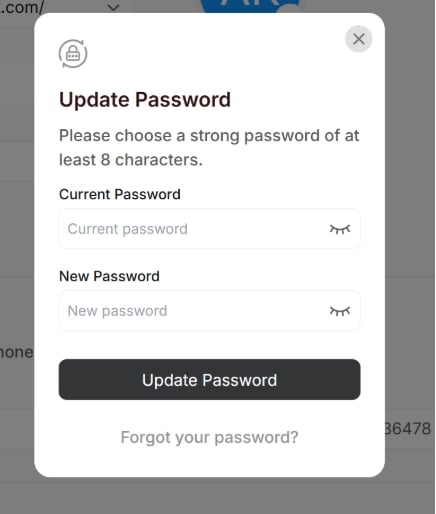 Now you can update your password by entering the current password and the new password.
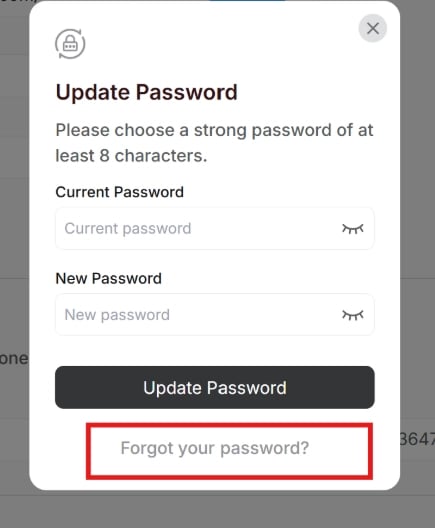
If you forgot your password, click on 'Forgot Your Password' and check your email for instructions on how to reset it.
Now you can update your password by entering the current password and the new password.
If you forgot your password, click on 'Forgot Your Password' and check your email for instructions on how to reset it.
Related articles
* [Plans and billing](/registration/account/plans-and-billing)
* [Fix common registration issues](/registration/troubleshooting/common-issues)
This documentation is built and hosted on [Mintlify](https://mintlify.com), a developer documentation platform.